MangaInk EXP
MangaInk EXP
The Essential Studio for
Digital Manga Creation
A focused, layer-based illustration tool designed for inking and screentones. Runs directly in your browser with no installation required.
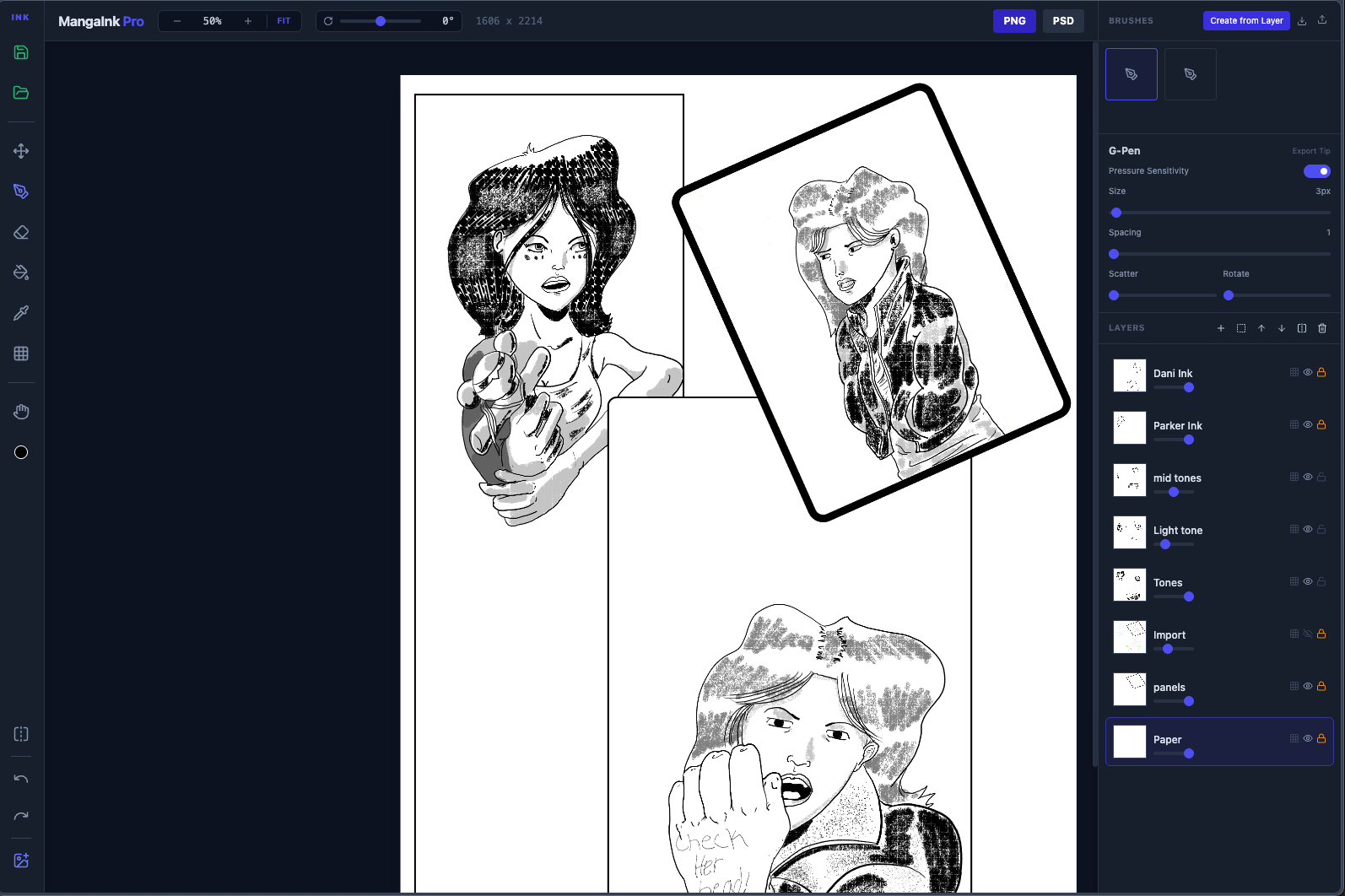
Engineered for Artists
Pro Layer System
Full layer management with Opacity, Blending Modes, Alpha Lock, and Transformations. Organize your artwork exactly like you do in heavy desktop software.
PSD Interoperability
Seamlessly Export to .PSD format to finish your work in Photoshop or Clip Studio Paint. Includes layer structure preservation.
Manga Halftones
Built-in engine to generate Dots, Lines, Crosshatch, and Noise patterns instantly. Perfect for comic shading and backgrounds.
Custom Brush Engine
Create brushes from your own layers! Adjust spacing, scatter, rotation, and pressure sensitivity to build your unique toolkit.
Advanced Transforms
Scale, Rotate, and Position layers with precision. Includes Canvas Rotation and Flipping to check your proportions while drawing.
Blue Pencil Mode
One-click toggle to switch your ink to Non-Photo Blue (or black) for sketching phases without changing your brush settings.
Keyboard Shortcuts
- P Pen Tool
- E Eraser
- F Fill Bucket
- V Move Tool
- Space Pan Canvas
- Alt Eyedropper
- Ctrl+Z Undo
File Formats
.MANGA (Native)
Saves layer data, visibility, modes, and custom brushes.
PSD (Export)
Compatible with Photoshop & Clip Studio Paint.
Start Drawing Now
MANGAINK EXP - USER GUIDE
v1.0 | Professional Web-Based Manga Studio
INTRODUCTION
MangaInk EXP is a lightweight, browser-based digital art studio designed specifically for manga creation and black & white illustration. It features a professional layer system, PSD compatibility, and a specialized engine for creating screentones and custom brushes.
GETTING STARTED
Since MangaInk EXP runs in the browser:
- Open the HTML file in any modern web browser (Chrome, Firefox, Edge).
- The app loads with a default "Paper" (white) layer and an "Ink" (transparent) layer.
BASIC TOOLS (Left Toolbar)
- Pen Tool (Shortcut: P) The primary drawing tool. Supports pressure sensitivity if you are using a drawing tablet.
- Eraser (Shortcut: E) Removes content. Works as a hard eraser or respects opacity settings.
- Fill Bucket (Shortcut: F) Fills enclosed areas with the current color.
- Move Tool (Shortcut: V) Moves the content of the currently selected layer. (Note: To move the view/camera, use the Hand tool instead).
- Eyedropper (Shortcut: Alt) Picks a color from the canvas.
- Tone Tool A specialized brush that paints patterns instead of solid colors. See "SCREENTONES" section below.
- Hand / Pan (Shortcut: Space or H) Click and drag to move your view around the canvas.
COLOR MODES
MangaInk is optimized for monochrome work.
- Click the color indicator (bottom of toolbar) to toggle between:
- BLACK (#000000): For final inking.
- BLUE (#2F65C9): "Non-photo blue" for sketching. (Pro Tip: Sketch in blue on a lower layer, then ink in black on top).
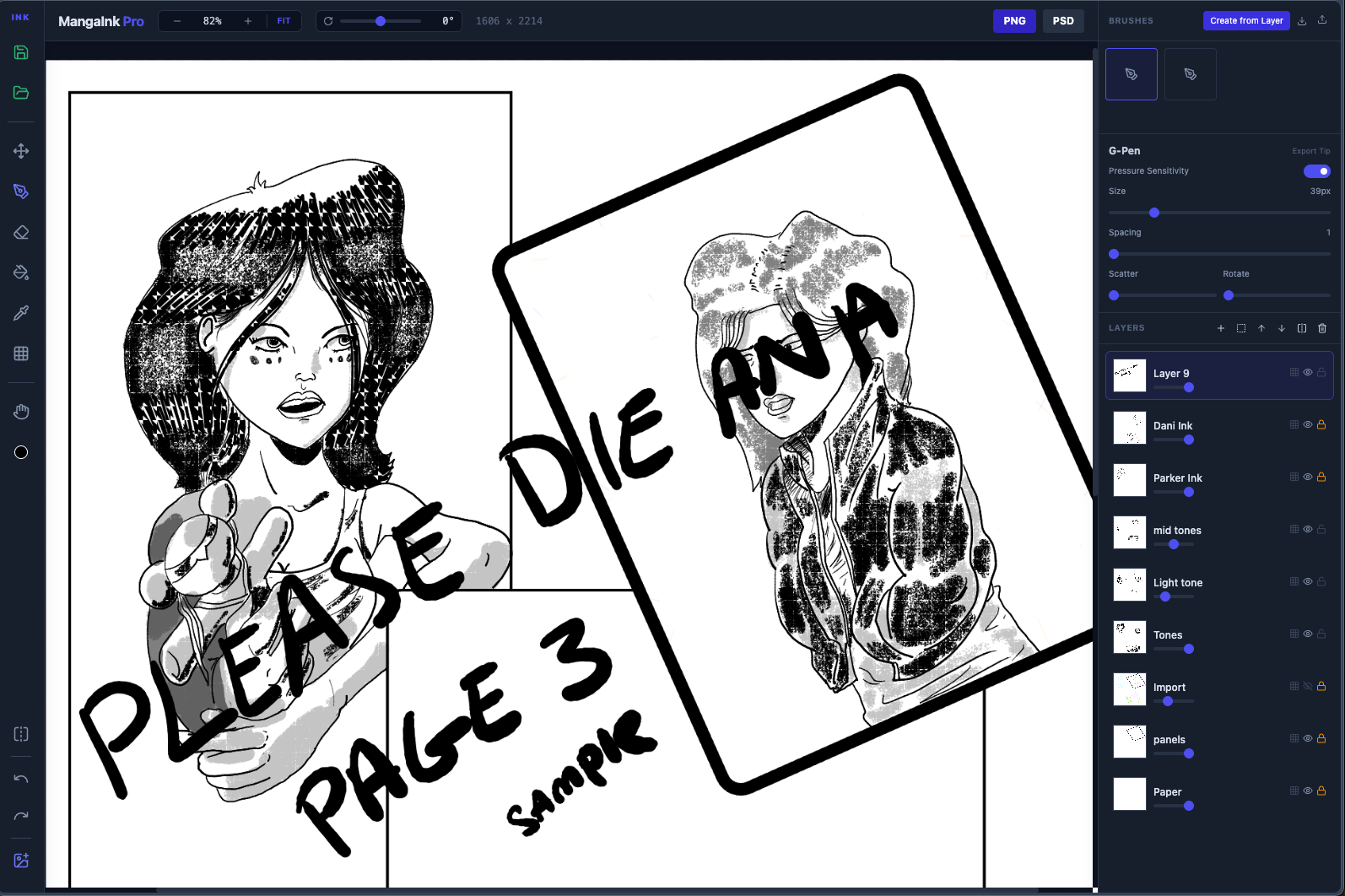
LAYER MANAGEMENT (Right Panel - Bottom)
The layer stack works like standard desktop art software.
- Add Layer (+): Creates a new transparent layer.
- Transform Layer (Box Icon): Opens the Transform UI to Scale, Rotate, or Move the specific layer numerically.
- Move Up/Down (Arrows): Reorders the layer stack.
- Flip Layer: Horizontally flips only the active layer.
- Delete (Trash Can): Removes the layer.
Layer Properties:
- Visibility (Eye): Hides/Shows layer.
- Lock (Padlock): Prevents painting on the layer.
- Alpha Lock (Grid): Locks transparency. You can only paint on pixels that already exist. Great for changing the color of lineart.
- Opacity Slider: Controls layer transparency (0-100%).
- Rename: Double-click a layer name to rename it.
BRUSH ENGINE (Right Panel - Top)
Customize your pen feel or create stamps.
Settings:
- Pressure: Toggle tablet pressure sensitivity on/off.
- Size: Brush diameter (1px - 200px).
- Spacing: Distance between dabs. Low (1) for lines, High (10+) for stamps.
- Scatter: Jitters the position of brush dabs (good for textures).
- Rotate: Rotates the brush tip.
Creating Custom Brushes:
- Draw a shape on any layer (black on transparent background).
- Click "Create from Layer" in the Brushes panel.
- The content is cropped and saved as a new brush tip instantly.
Brush Packs:
- Save Brush Pack (Download Icon): Exports your custom brushes to a .JSON file.
- Load Brush Pack (Upload Icon): Imports a .JSON brush pack.
SCREENTONES (Halftones)
Use the "Tone Tool" (Grid Icon) to paint manga backgrounds and shadows.
Types:
- Dots: Standard manga shading.
- Lines: Diagonal shading.
- X (Crosshatch): Cross-hatched shading.
- Noise: Random grit texture.
Density Slider: Controls how dark/tight the pattern is.
CANVAS OPERATIONS
- Zoom: Use the UI buttons (+/-) or Ctrl + Mouse Wheel.
- Rotate View: Use the slider at the top or Shift + R (rotates 15° increments).
- Flip Canvas (Left Toolbar): Flips the entire image (all layers). This is destructive and permanent, meant for checking proportions.
- Import Image: Adds a local image file (JPG/PNG) as a new layer.
FILE SAVING & EXPORT
- Save Project (.manga): Saves all layers, names, visibility, and custom brushes. This is the native format. Always save a .manga file to keep your work editable.
- Export PNG: Flattens the image to a standard PNG file for sharing.
- Export PSD: Exports a Photoshop-compatible file.
- Preserves layer structure.
- Preserves blending modes.
- Preserves opacity.
- Compatible with Clip Studio Paint and Photoshop.
SHORTCUT REFERENCE
Tools: P ......... Pen E ......... Eraser F ......... Fill Bucket V ......... Move Tool H / Space . Hand Tool (Pan) Alt ....... Eyedropper
Layer Operations: Ctrl + [ .. Move Layer Down Ctrl + ] .. Move Layer Up
System: Ctrl + Z .. Undo Ctrl + Y .. Redo Ctrl + S .. (Browsers may try to save page, click the disk icon instead) Shift + R . Rotate View 15°
================================================================================ Generated for MangaInk EXP
MangaInk EXP is free to use. Pay what you want to support future development and new features like cloud storage and collaborative drawing.
Download
Click download now to get access to the following files:
Leave a comment
Log in with itch.io to leave a comment.